Get started
Everything you need to run your first Zana game, from signing up to seeing the final scores. Prefer to be shown? On any page, click the ? button in the corner and choose Explain this page.
Welcome to Zana
Zana turns your class into a live quiz game. You build questions in this app, then host a game on the big screen while everyone answers on their phones. This guide walks you all the way through, from signing up to seeing the final scores. No experience needed.
It helps to know Zana has two sides. This app, the light screens you're looking at now, is where you sign in, build quizzes, and manage your courses. The game is a dark, full-screen view that you put on the projector during class, while your students play along on their phones. You'll move between the two: build here, play there.
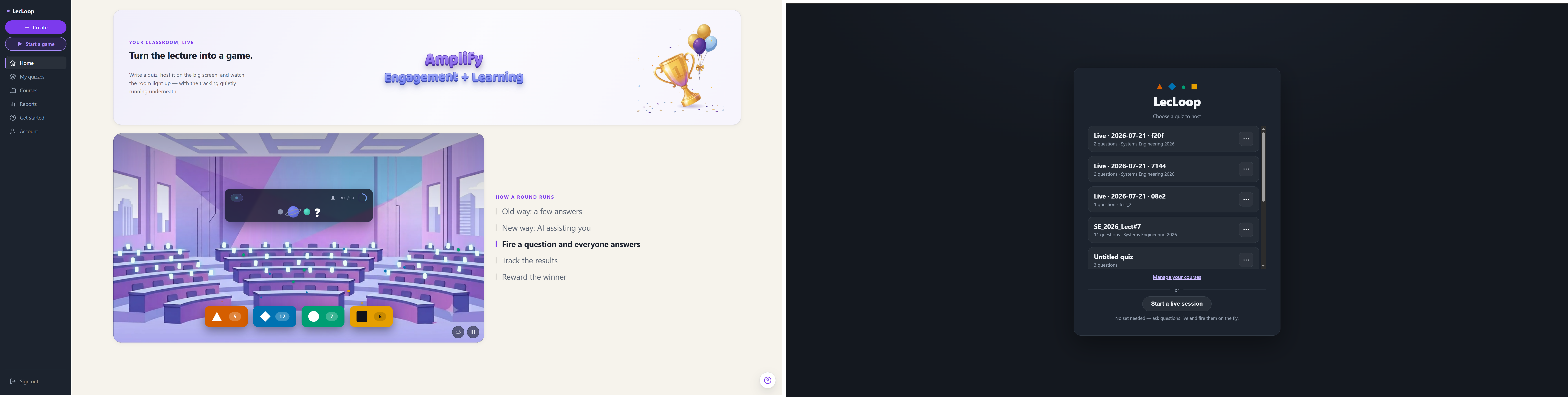
New here? The quickest way to learn is the guided tour. On any page, click the ? button in the corner and choose Explain this page, and Zana points at the real buttons as you go.
Create your account
Sign up
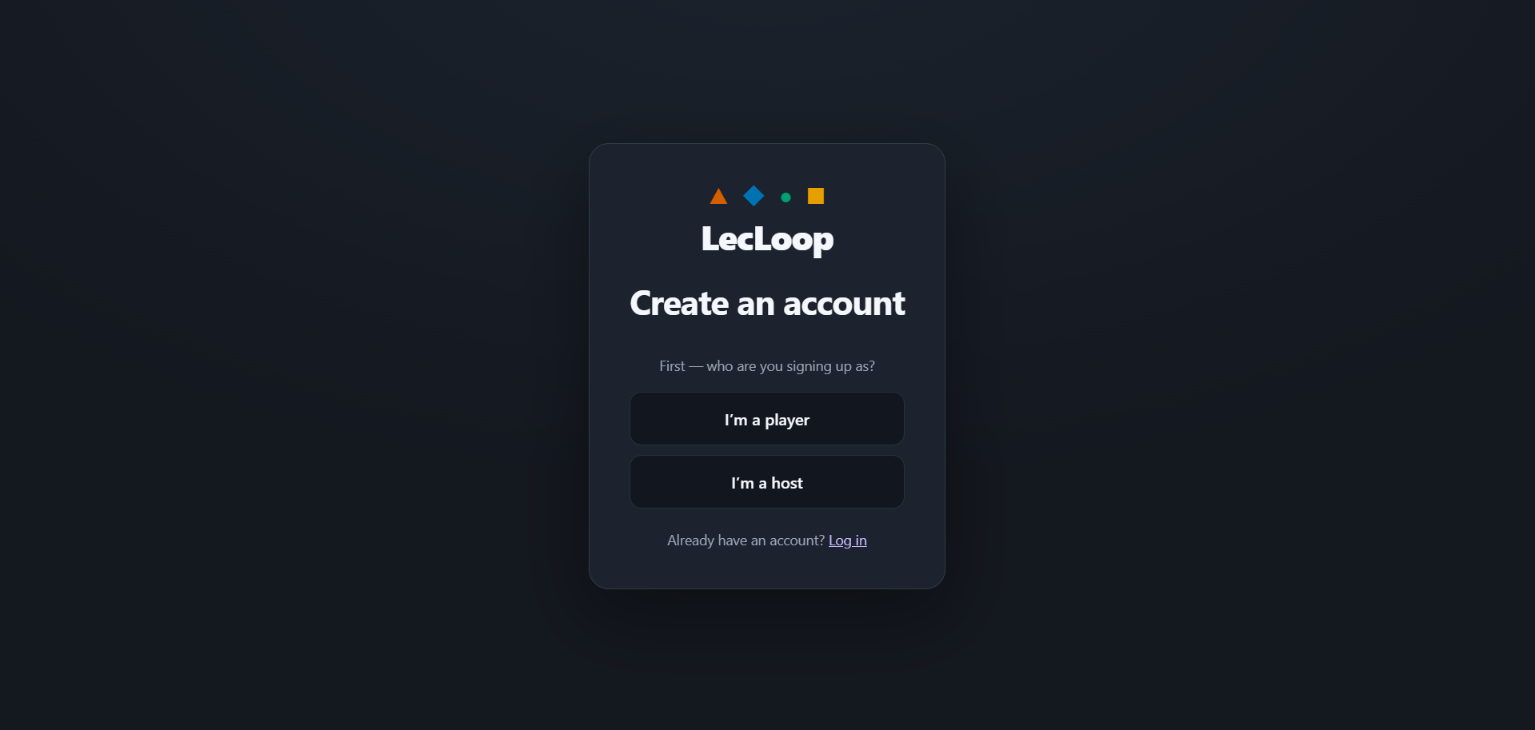
On the sign-up page, first pick who you are: I'm a host (that's you, the person who builds and runs games) or I'm a player (a student who joins games). Hosts need a host invite code to create an account, so enter yours when asked.
Already have an account? Just log in. You can also continue with Google, though note that a Google sign-in creates a player (student) account.
Find your way around
Once you're in, the left menu is your home base: Home at the top, My quizzes for everything you've built, Courses for your classes, Reports for results, and Account at the bottom (your settings, help, and sign out).
Set up a course (optional)
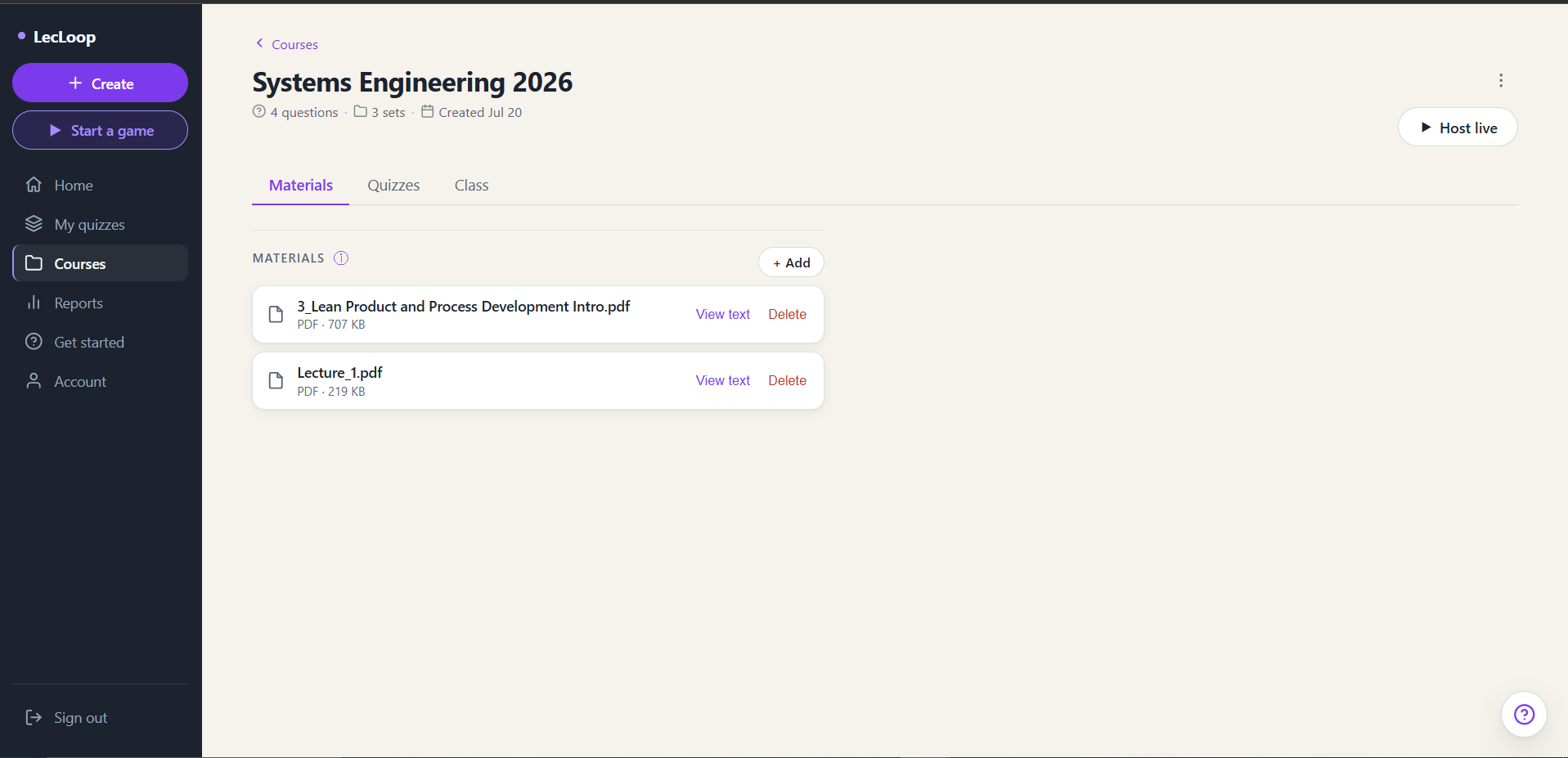
A course is a folder for one class or subject. It's optional, since you can build a quiz without one, but a course keeps your quizzes, materials, and student results together, and lets students enrol so their scores are tracked over time.
- Open Courses in the left menu and create a course.
- Inside it you'll find three tabs: Materials (upload PDFs, slides, or notes you want AI to build questions from), Quizzes (the quizzes in this course), and Class (your students).
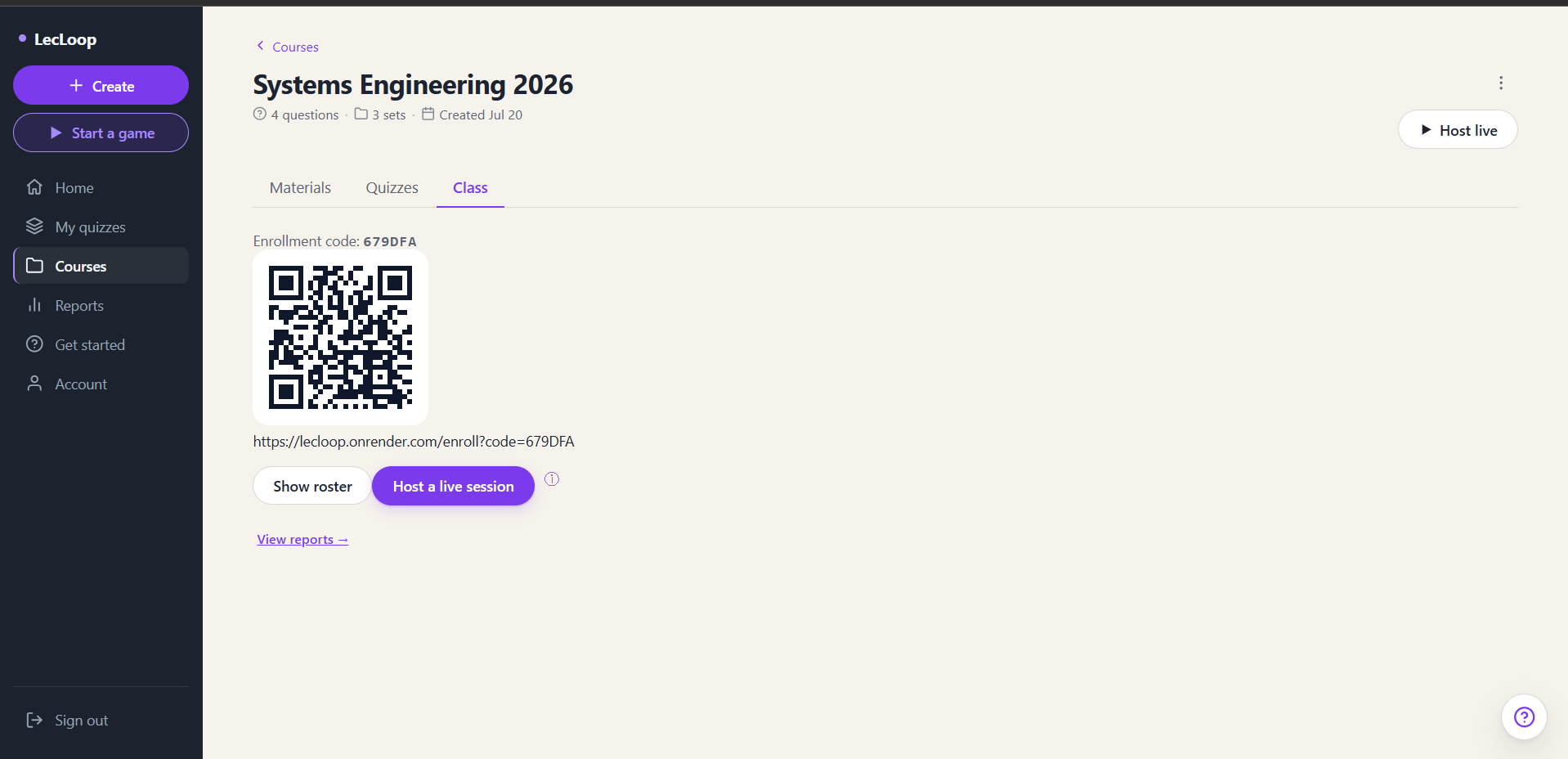
- The Class tab shows an enrolment code and a QR code. Share either with your students, who enter the code (or scan it) to join your course.
You don't have to set up a course to try Zana. If you just want to play, skip ahead and build a quick quiz.
Build your first quiz
A quiz is a set of questions. Here's how to make your first one.
1. Create a quiz
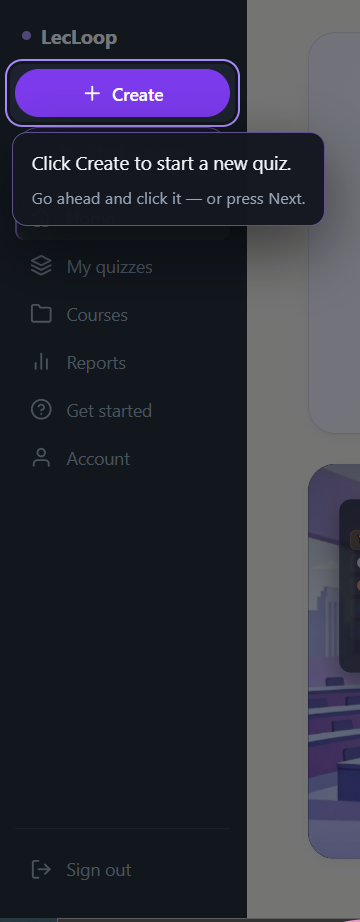
Click Create in the left menu (or New quiz on the My quizzes page). Zana makes a fresh, empty quiz called *Untitled quiz* and opens the editor.
2. Get to know the editor
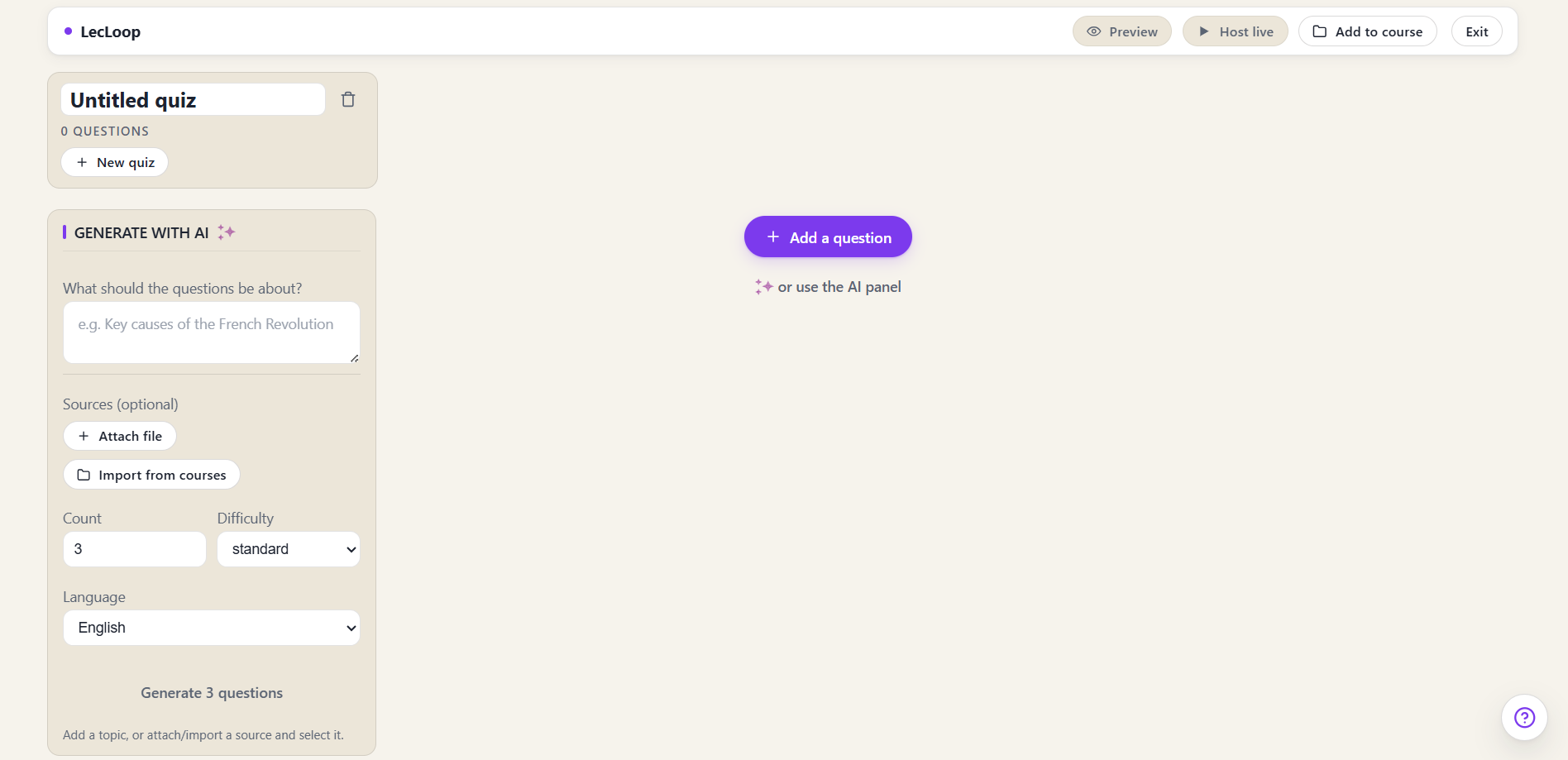
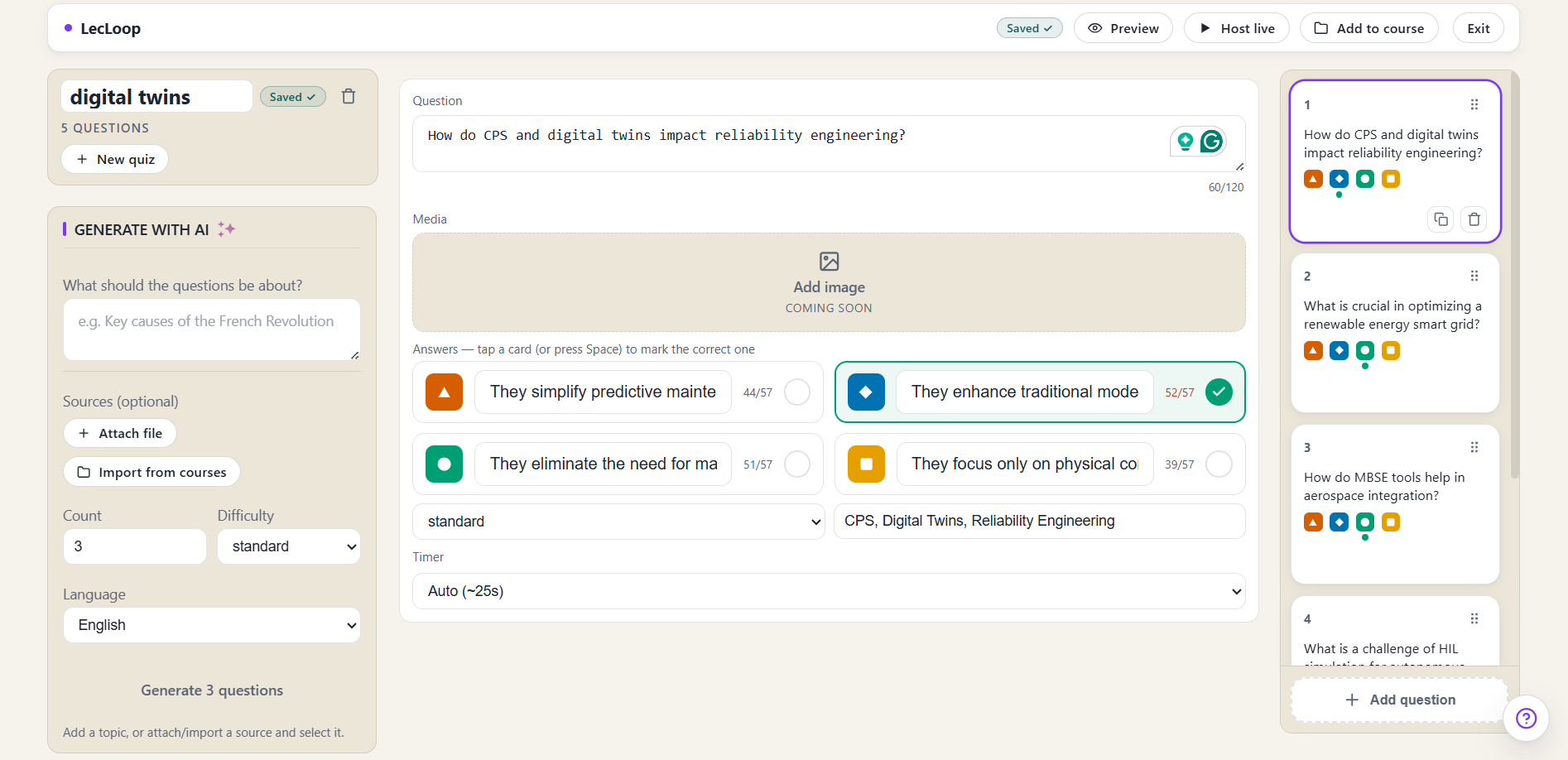
The editor has three parts: a Generate panel on the left (for AI), the question you're editing in the middle, and a filmstrip of all your questions down the right. Give the quiz a name in the box at the top. It saves as you type, so watch for Saved near the top.
3. Add a question
Click Add question. Type your question in the big box (up to 120 characters), then fill in the four answer cards below it (up to 57 characters each).
Now the important bit: click the card that holds the correct answer. A checkmark appears on it. A question isn't finished until you've picked its correct answer.
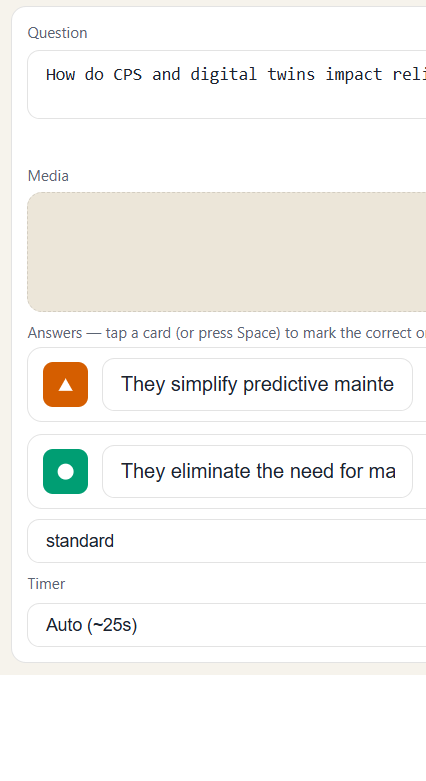
You can also set a difficulty, add topic tags, and choose a timer (or leave it on Auto).
4. Let AI write questions for you
Don't fancy typing every question? Use the Generate panel:
- Describe a topic in the box. For example, "the water cycle for 5th graders".
- Or attach a file (a PDF, Word, PowerPoint, or text file) and Zana builds questions from it.
- Or import a material you've already added to a course.
- Choose how many questions (1 to 10), the difficulty, and the language, then press Generate.
The new questions drop straight into your filmstrip. Not happy with one? Open it and use Regenerate for a fresh take, or Redesign to nudge it harder, easier, more applied, or more conceptual.
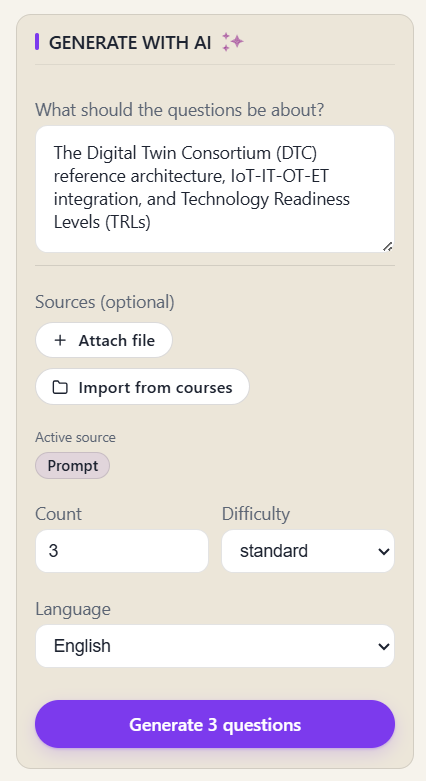
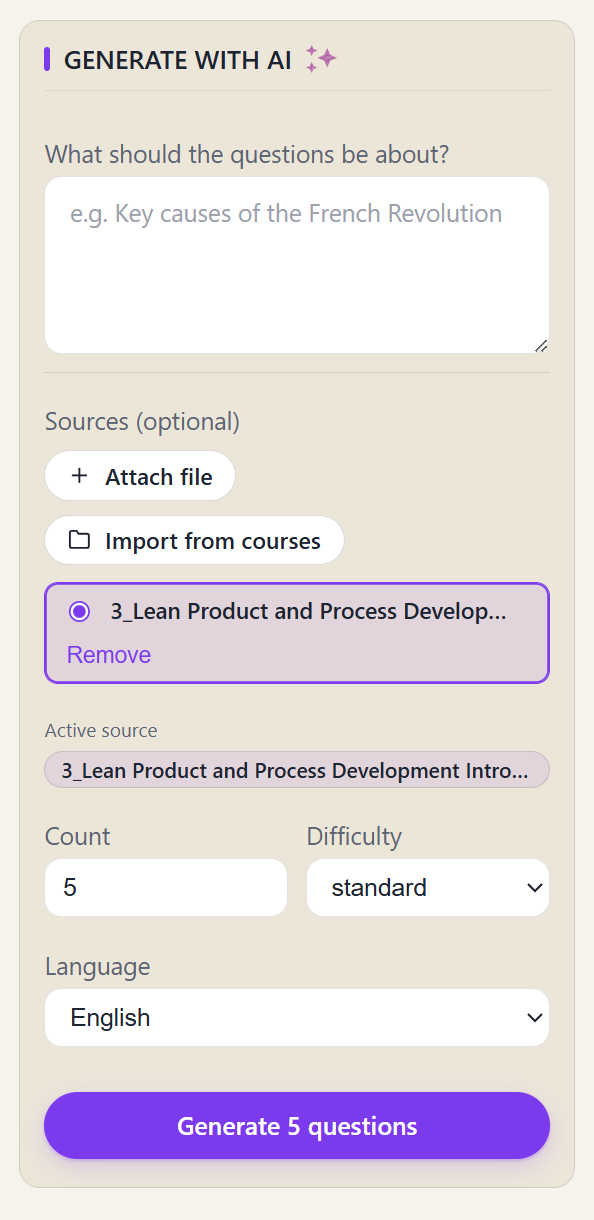
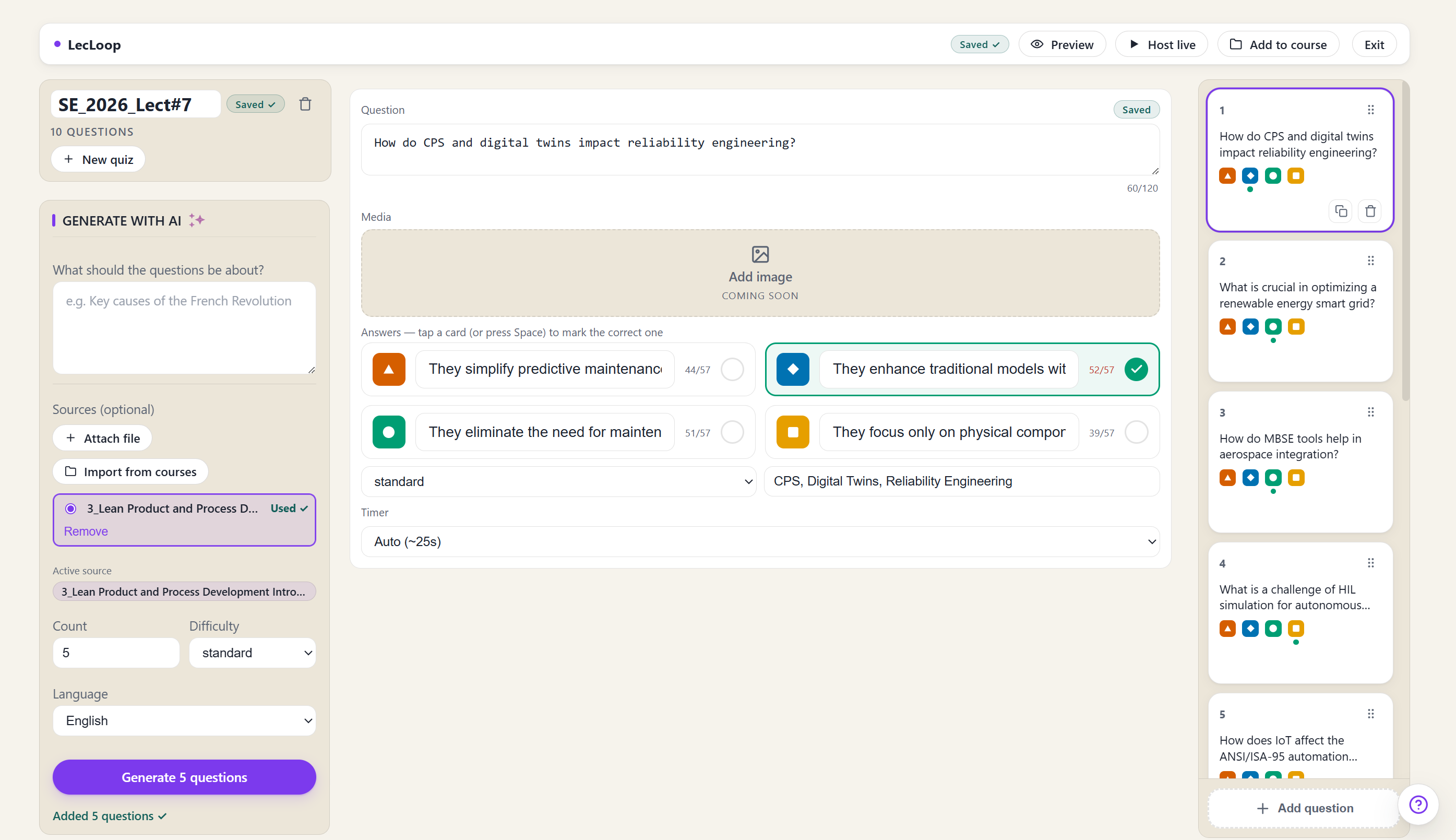
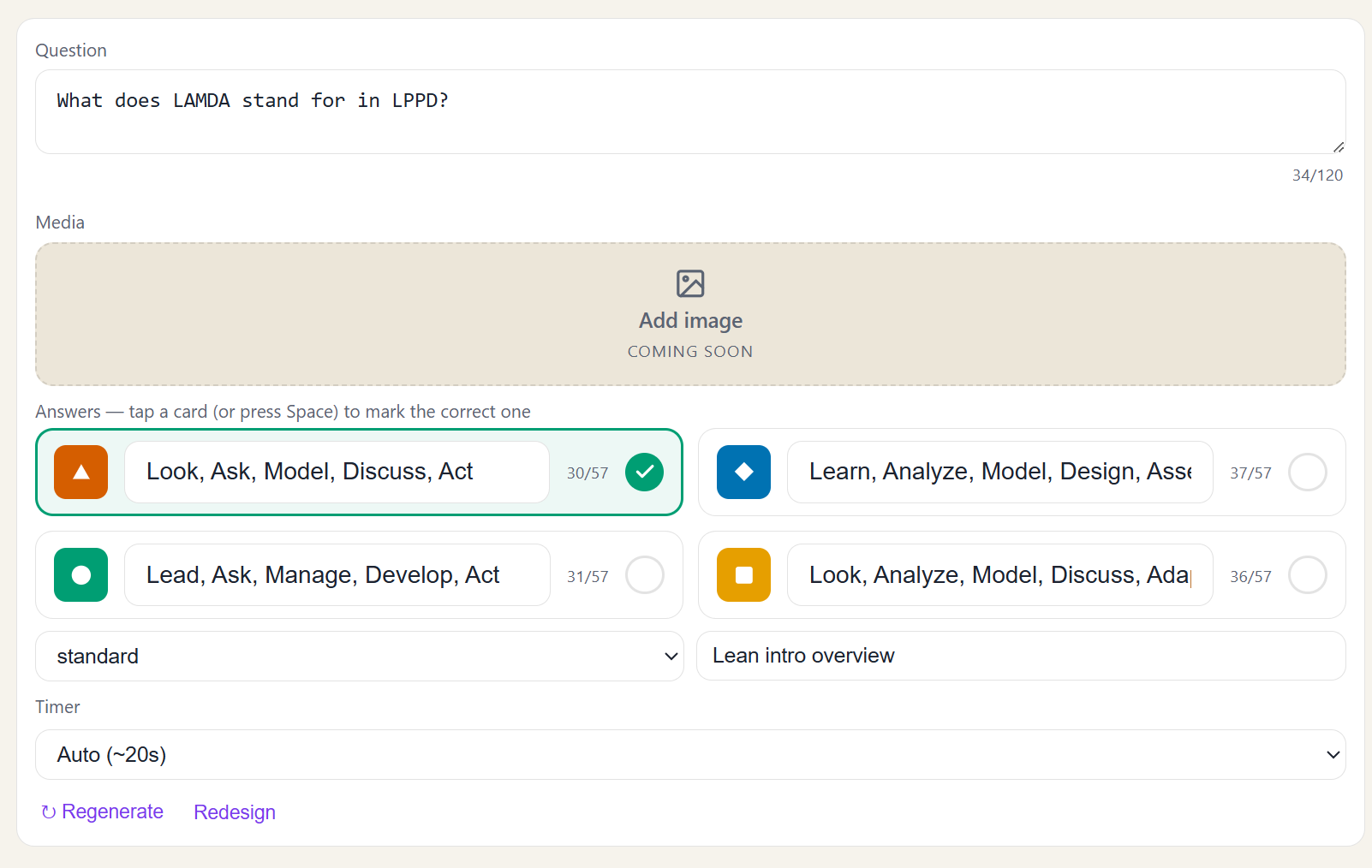
AI questions are a starting point, so always read them over before you play. You're the teacher; the AI is your assistant.
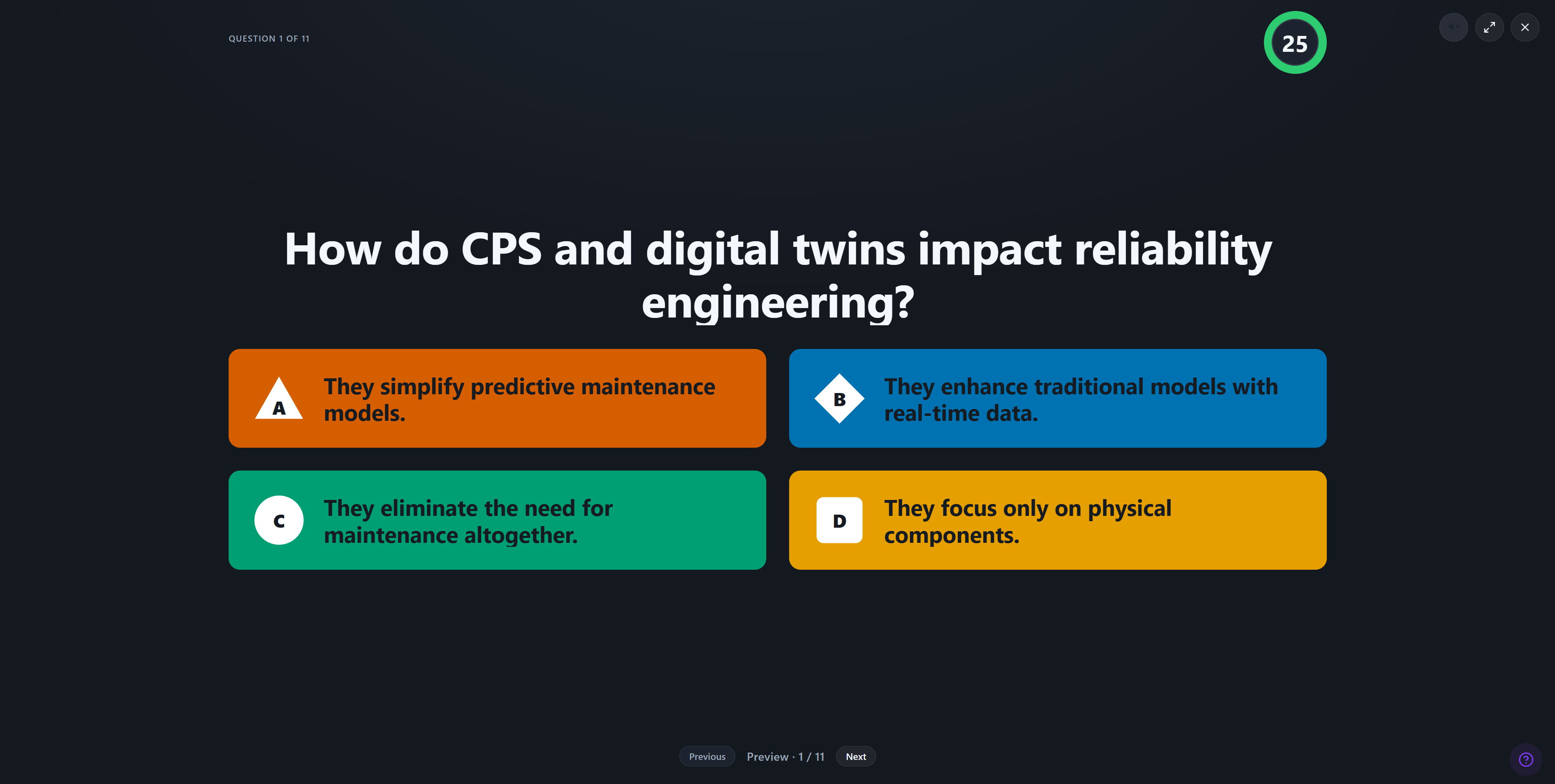
5. Preview it
Click Preview to see exactly how your quiz will look on the projector before you go live.
Host a live game
You've got a quiz. Time to play it with your class.
1. Start a game
From the quiz editor, click Host live, then choose one of two ways to play:
- Quick game, the fastest way. Students join anonymously with a code, and nothing is saved afterward. Great for a one-off or a trial run.
- Registered game, where students join with their accounts, so their scores are tracked and you get a report. Use this for a real class (they'll need to be enrolled in the course).
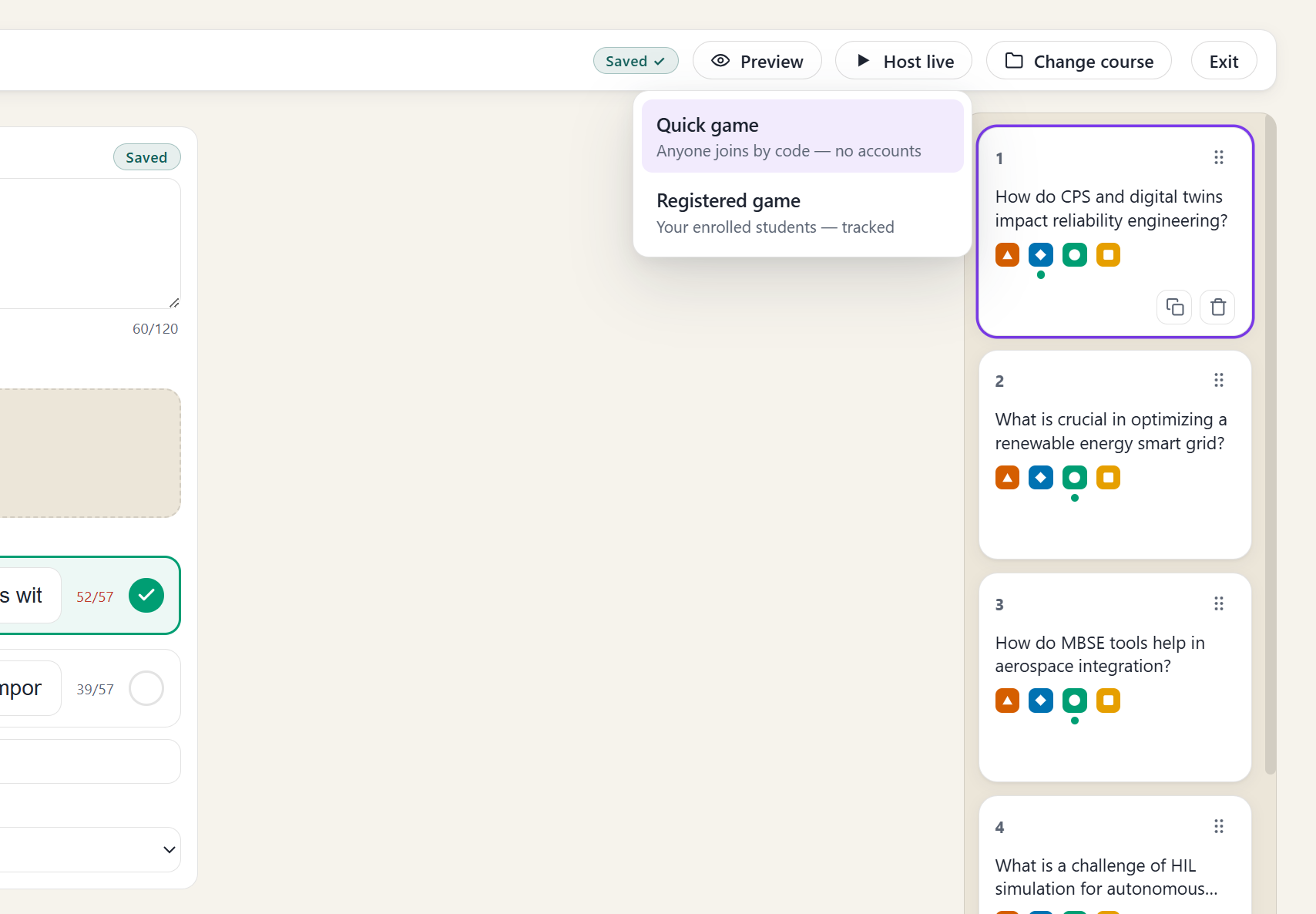
Not sure which? Start with a Quick game to get the feel of it. You can always host a registered game later.
2. The lobby
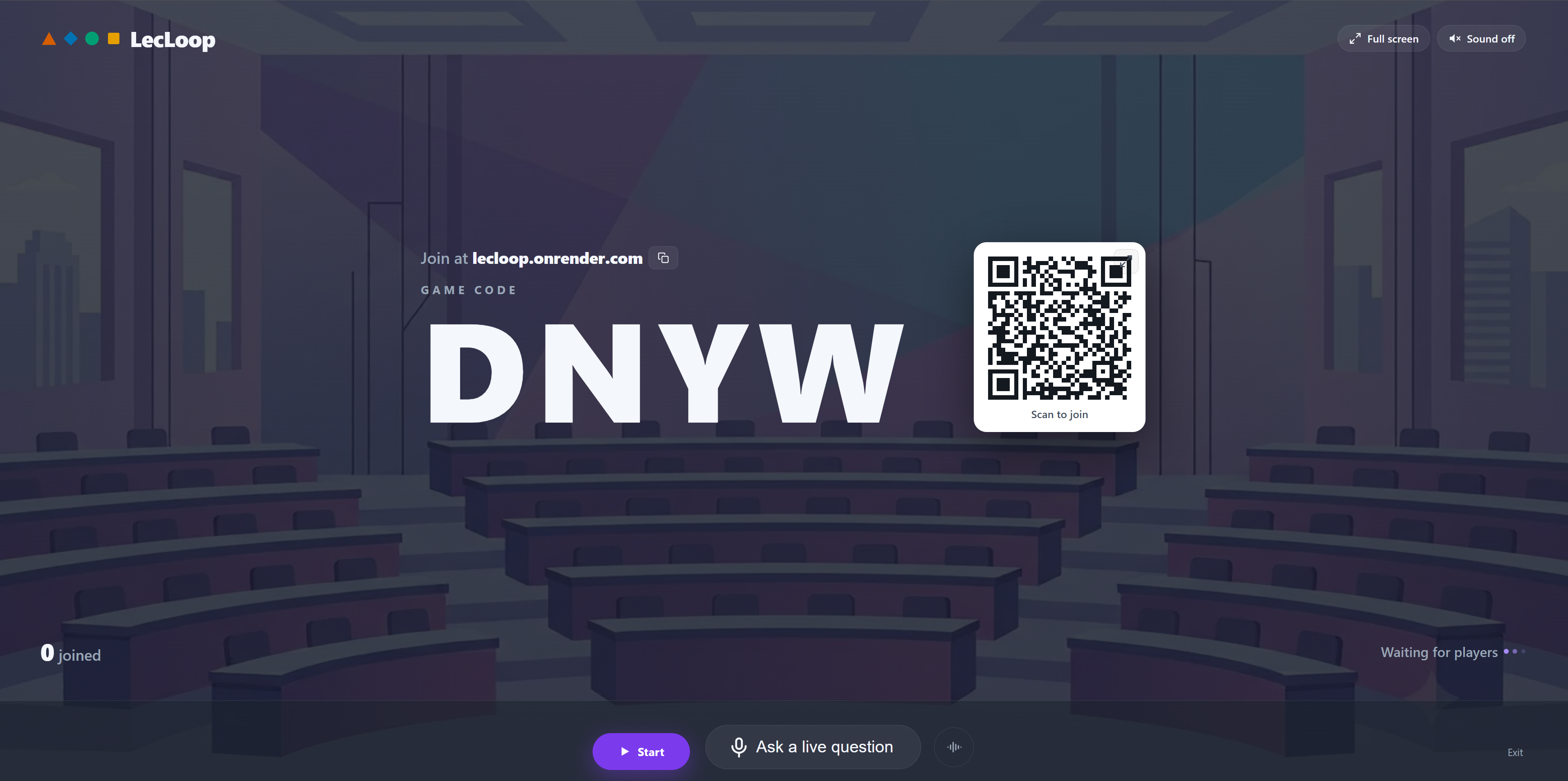
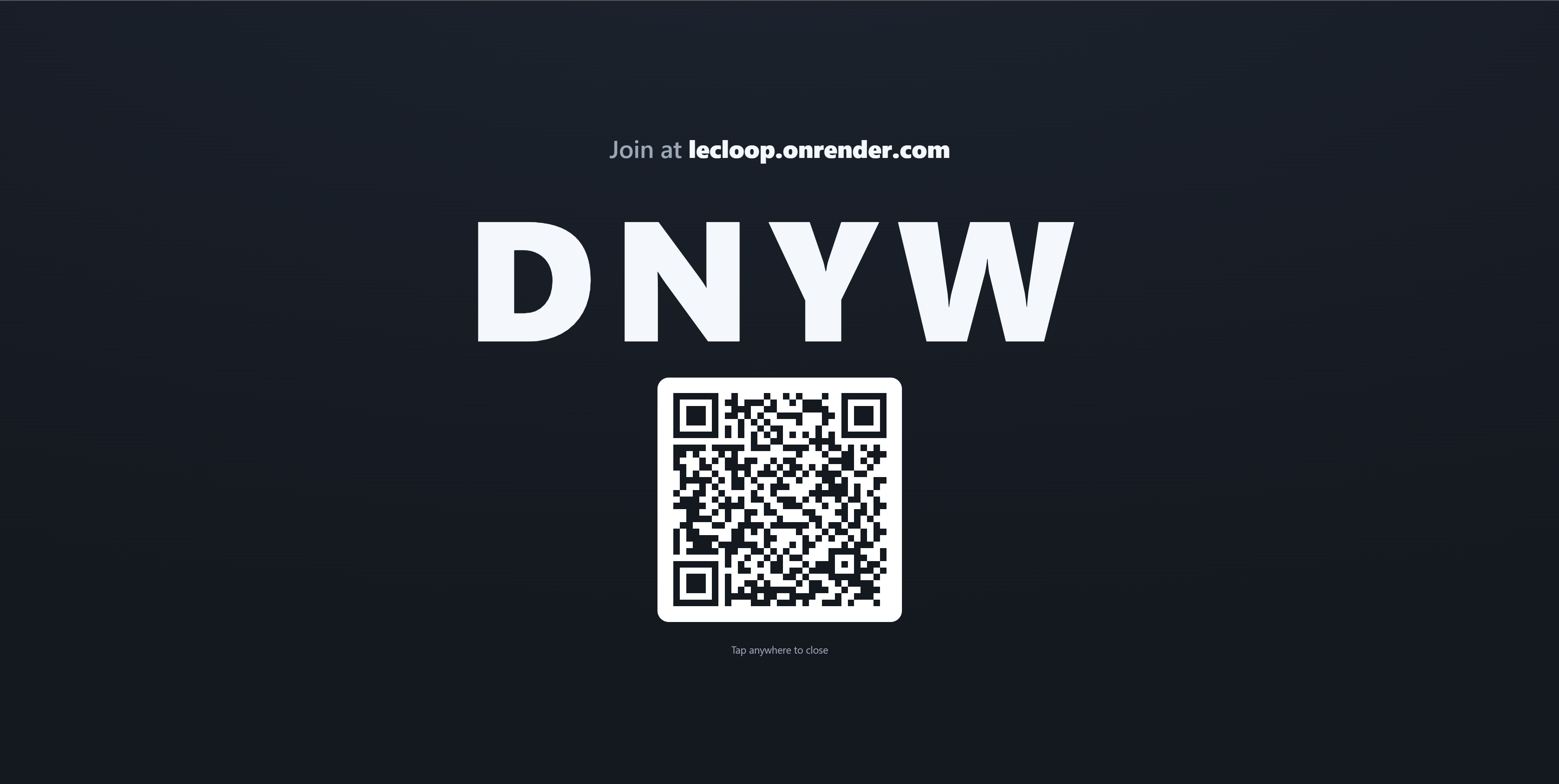
Zana shows a game code and a QR code on screen, so put this on the projector. Students open the join page on their phones, type the code (or scan the QR), and their names pop up as they join. Tap the QR to blow it up full-screen so the back row can see.
When enough players are in, press Start to send the first question.
3. Running the game
Each question appears on the projector with a countdown timer. Students tap their answer on their phones, and you'll see the number answered climb. If a question isn't working, Skip question drops it for everyone, so nobody gets points for it.

4. Results and the leaderboard
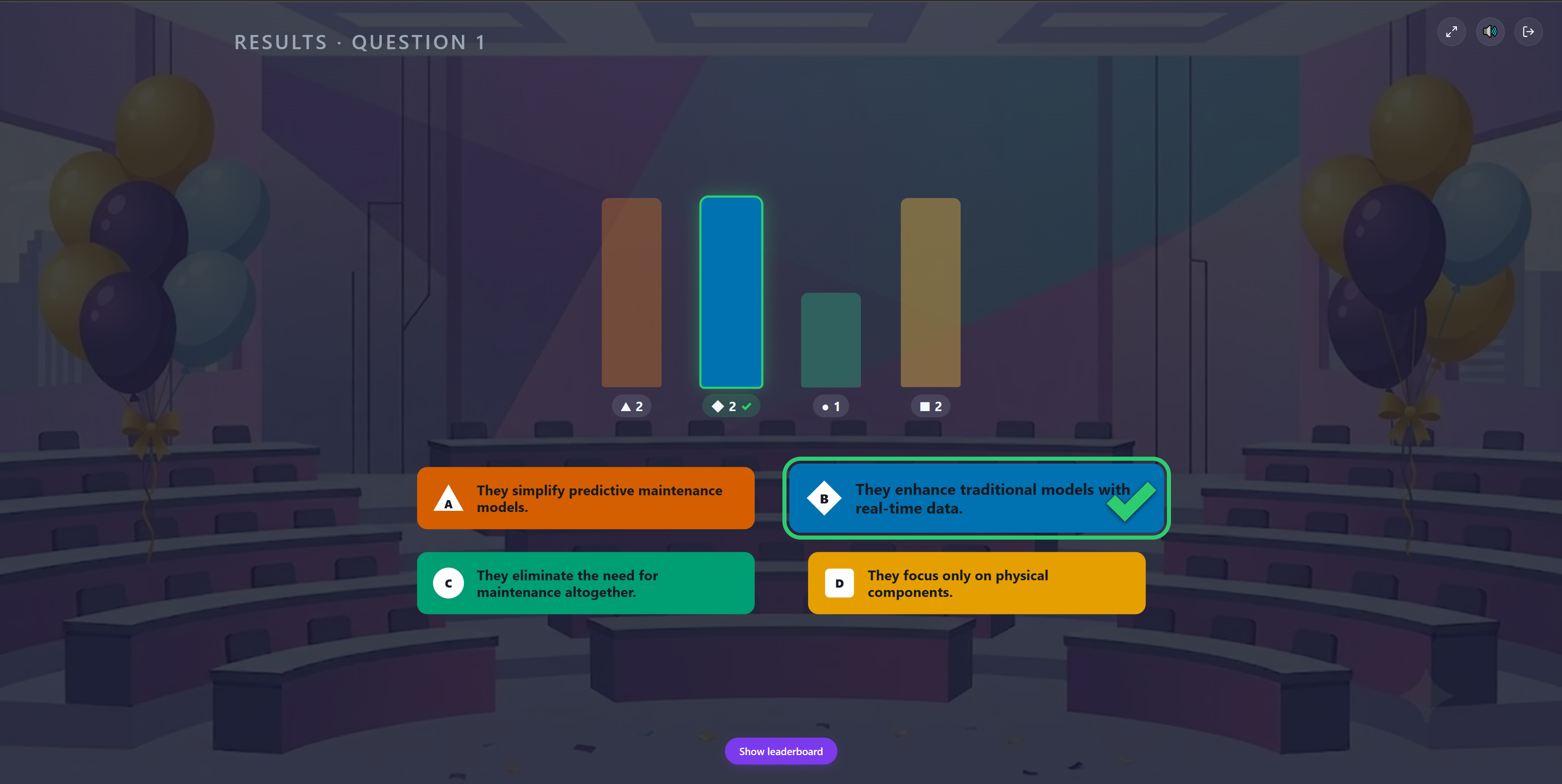
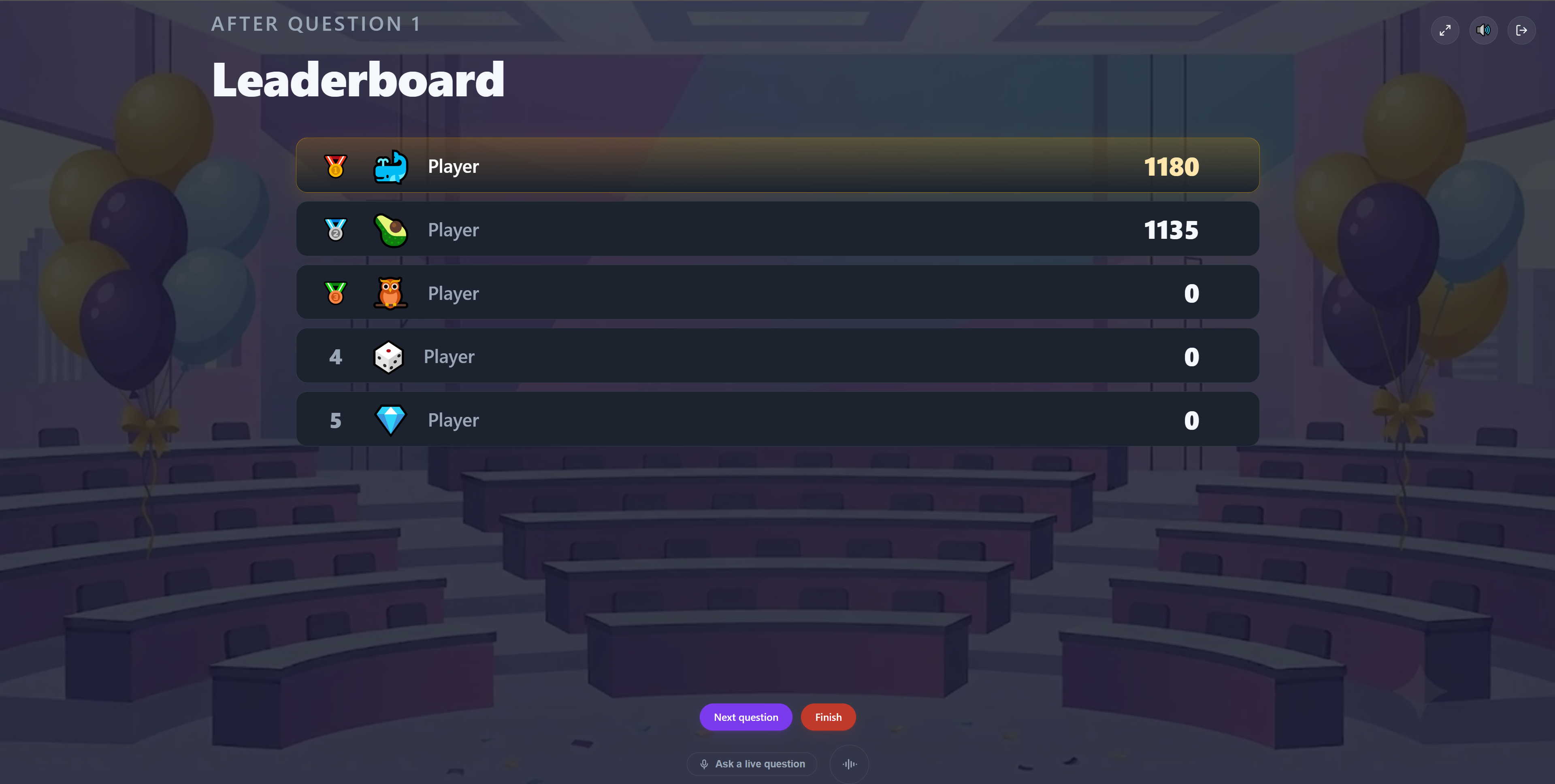
When time's up, Zana shows how the class answered and marks the correct answer. Press Show leaderboard to reveal the standings, then Next question to carry on. When you're done, press Finish.
5. The finish
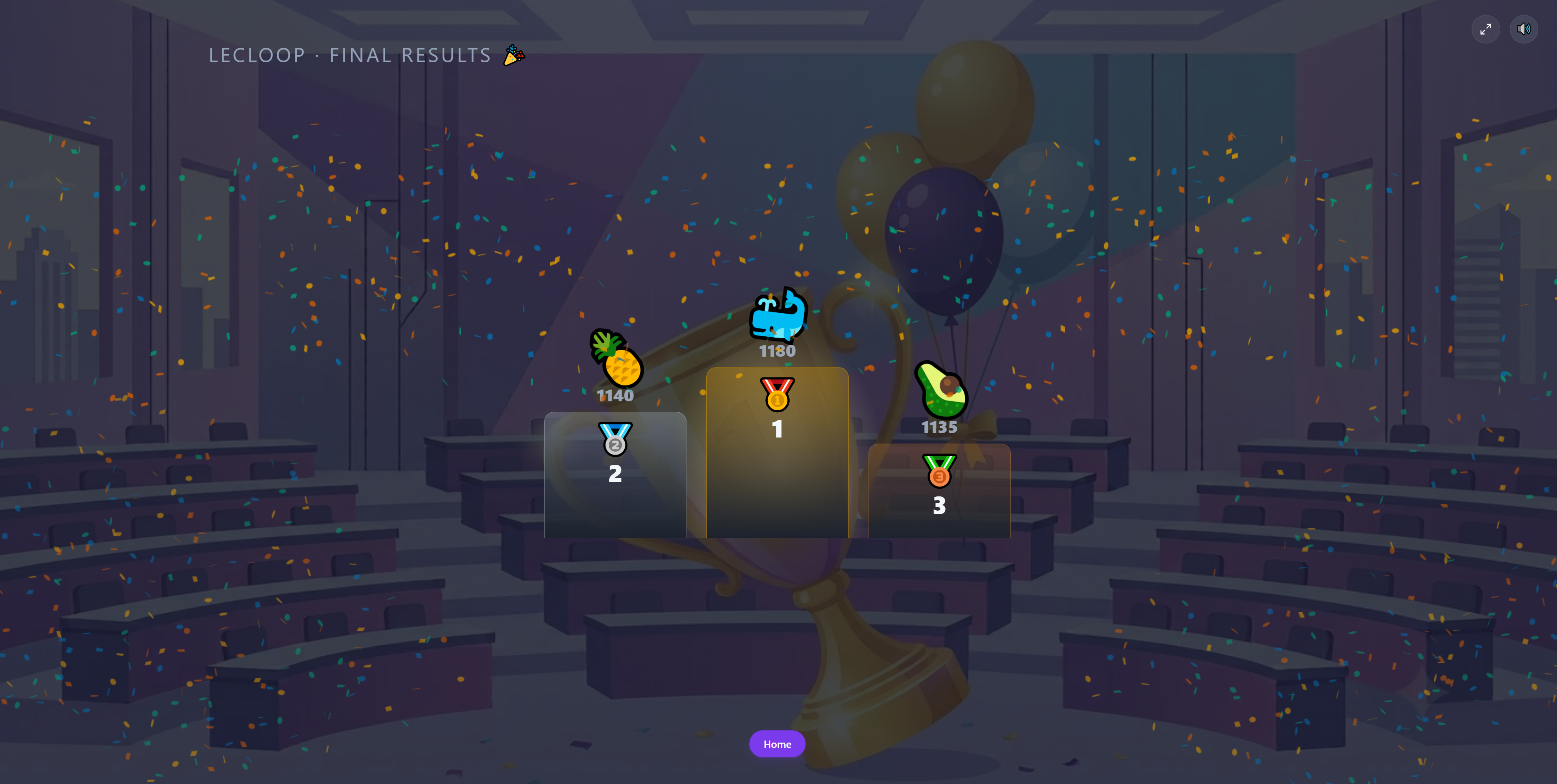
At the end, Zana celebrates the top players on a podium. In a registered game you'll also get a View report button to see how everyone did.
What your students see
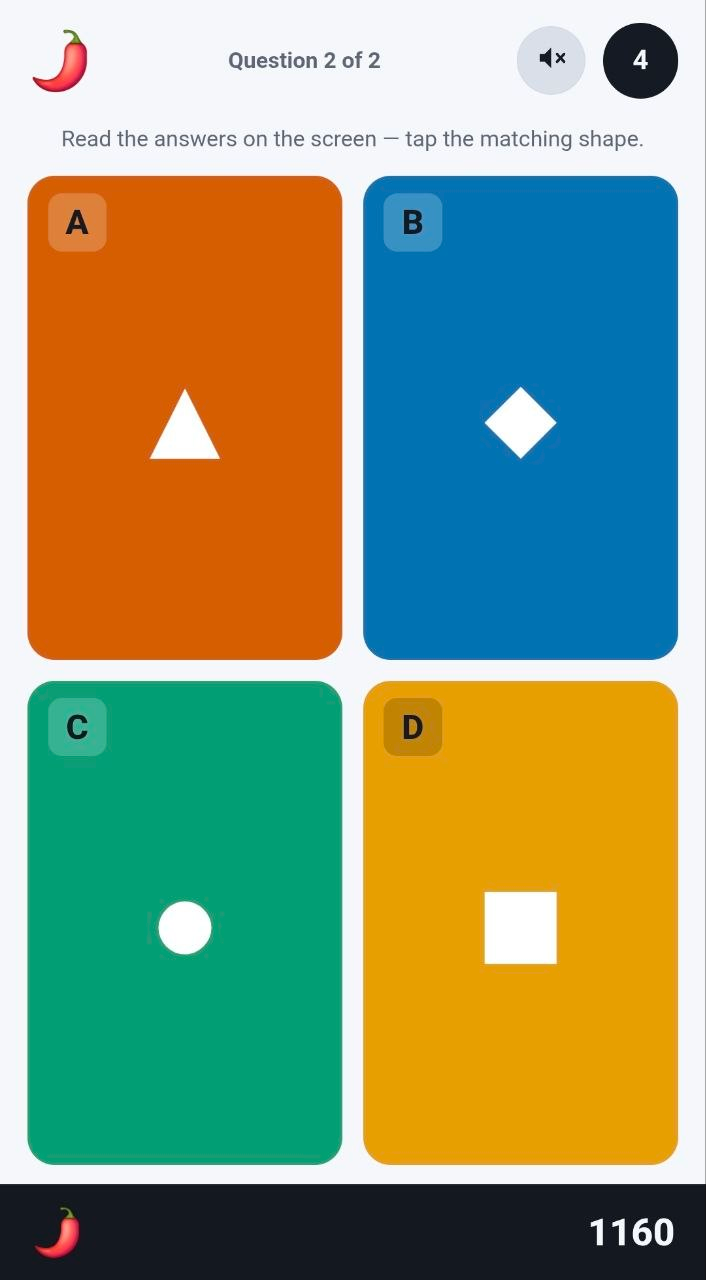
Your students don't need the app or an account for a quick game. They open the join page on their phone, enter your game code (or scan the QR), pick an emoji, and they're in. Each question shows four coloured, shaped answer buttons, and they tap the one they think is right before the timer runs out.

See how it went (Reports)
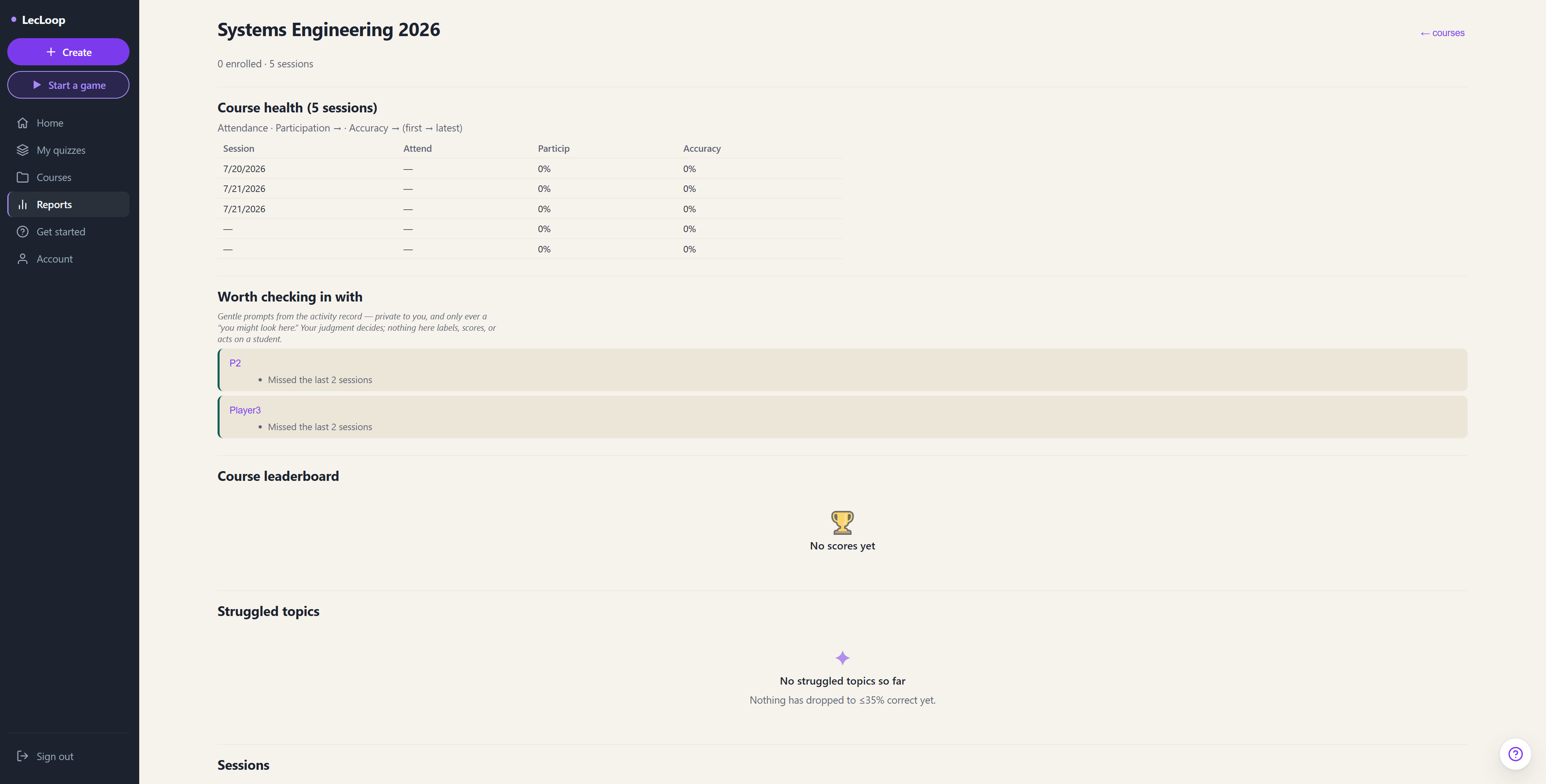
After a registered game, open Reports in the left menu to see how the class did: who answered what, how many got each question right, and how individual students are doing over time. Quick games are throwaway and aren't saved, so they don't produce reports.
Ask a question on the fly
Sometimes a question comes to you mid-class. In the lobby (and between questions) you'll find Ask a live question. Press it, say your question out loud, and Zana turns it into a quiz you can review and Fire to the room on the spot, with no typing.
A hands-free voice mode (meet Zana-x1) is on the way as an opt-in extra. For now, the press-to-talk button above is always there.
Tips & troubleshooting
More coming here as we learn what trips people up. If something confused you, tell us, because that's exactly what this section is for.
Glossary
- Quiz: a set of questions you build and play.
- Course: a folder for one class, holding its quizzes, materials, and enrolled students.
- Quick game: an anonymous, throwaway game where nothing is saved.
- Registered game: students play with their accounts, and scores plus a report are saved.
- Game code: the short code students type to join your live game.
- Material: a file (PDF, slides, notes) you upload so AI can build questions from it.